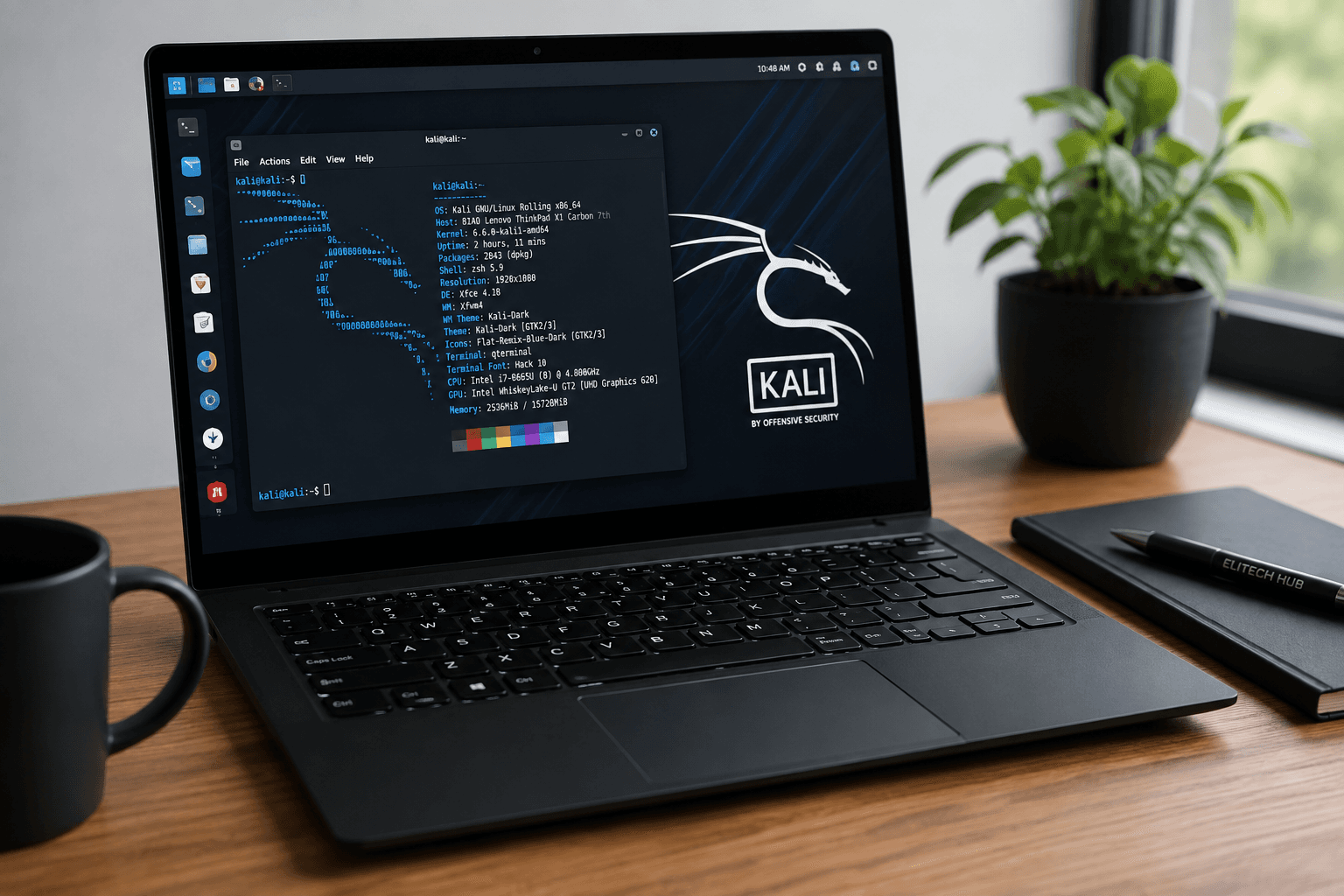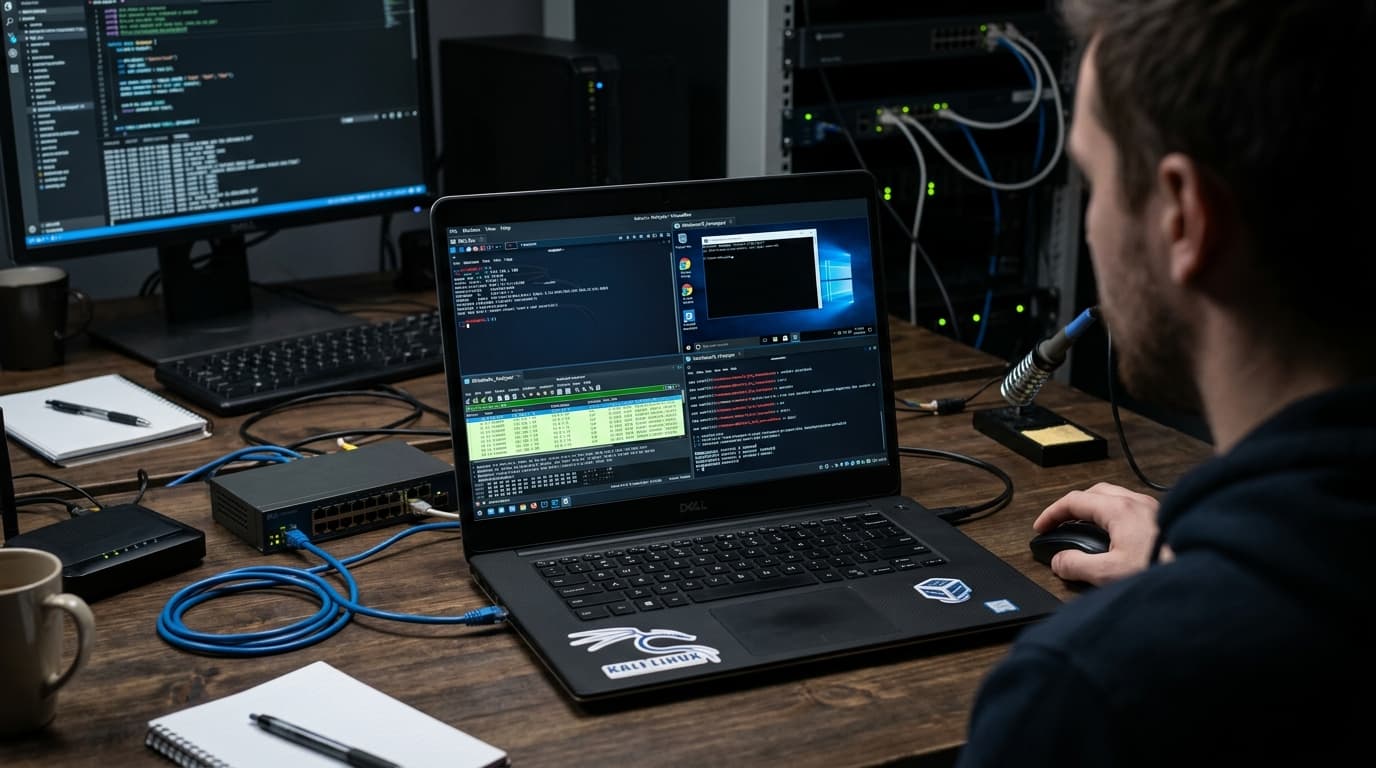
If you are getting into cybersecurity, you are going to spend a lot of time breaking things. You will be launching malware, hacking vulnerable web applications, and testing exploits. You cannot do this on the main operating system of your laptop unless you want to spend every other weekend reinstalling Windows.
This is where virtualization comes in. Virtualization is at the heart of most cybersecurity lab work. It allows you to run a second, third, or even fourth operating system directly inside your main OS, completely isolated from your personal files. But here is the catch: running virtual machines (VMs) fundamentally changes what you need from a laptop.
A laptop that feels incredibly fast when browsing the web or watching YouTube can instantly choke the moment you try to boot up Kali Linux alongside a vulnerable Windows server. This article focuses specifically on virtualization workloads — explaining why VM work changes your hardware requirements, what features actually matter, and the common mistakes people make when buying a laptop for their cybersecurity lab environment.
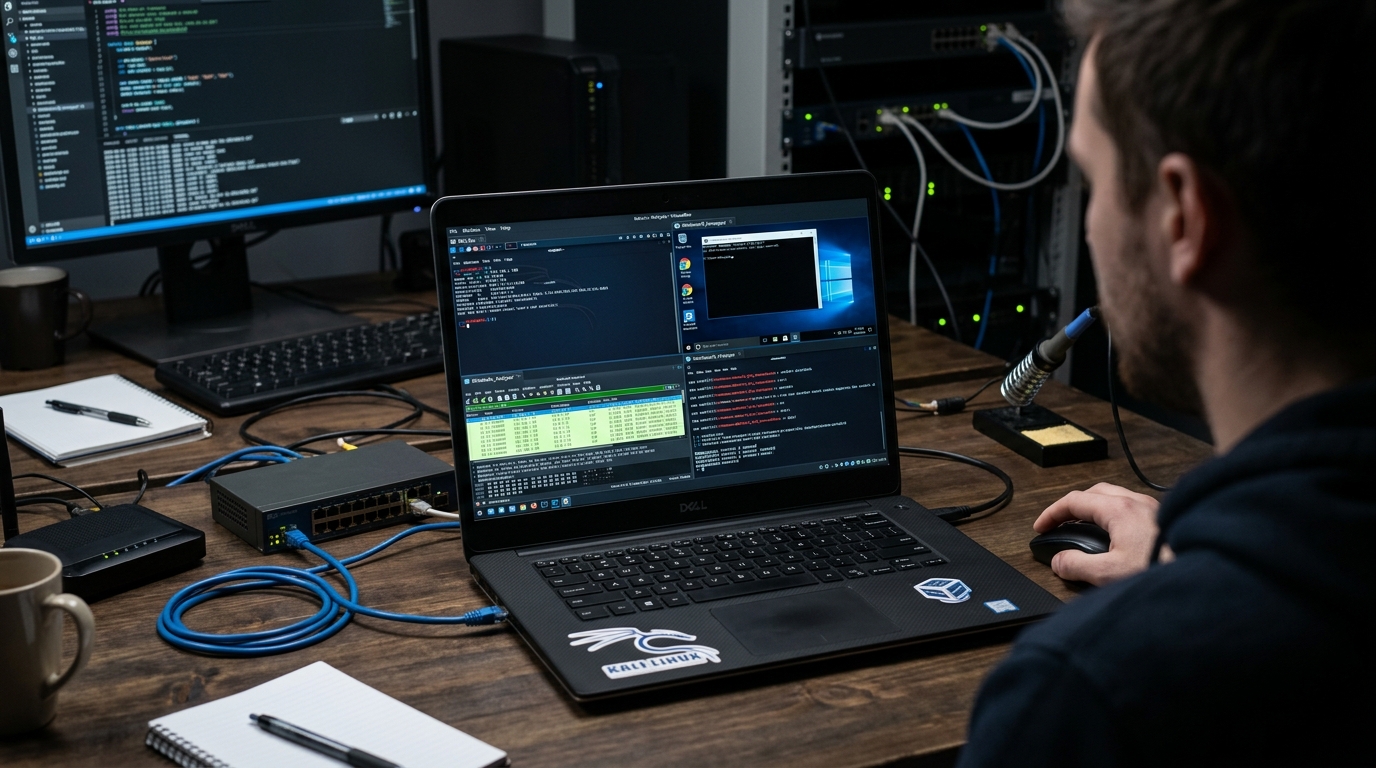
What Virtualization Actually Is
In simple terms, virtualization is running a computer inside a computer. Using software known as a hypervisor (like VMware Workstation, VirtualBox, Hyper-V, or UTM for Mac), you allocate a slice of your laptop's physical hardware to create an isolated "virtual" machine.
In cybersecurity, you use virtualization to:
- Run Kali Linux safely without overwriting your host operating system.
- Create isolated attack and defense environments (like an Active Directory lab).
- Simulate enterprise networks to practice packet sniffing and network attacks.
- Run malware safely to analyze what it does without infecting your actual PC.
- Set up honeypots to see how automated attacks behave in real-time.
Every single VM you create is essentially a separate computer running on your laptop simultaneously. If you have Windows 11 running as your host, Kali Linux running as your attacker, and a Windows 10 VM running as your target, your laptop is effectively doing the work of three computers at once.
Why VMs Change What You Need From a Laptop
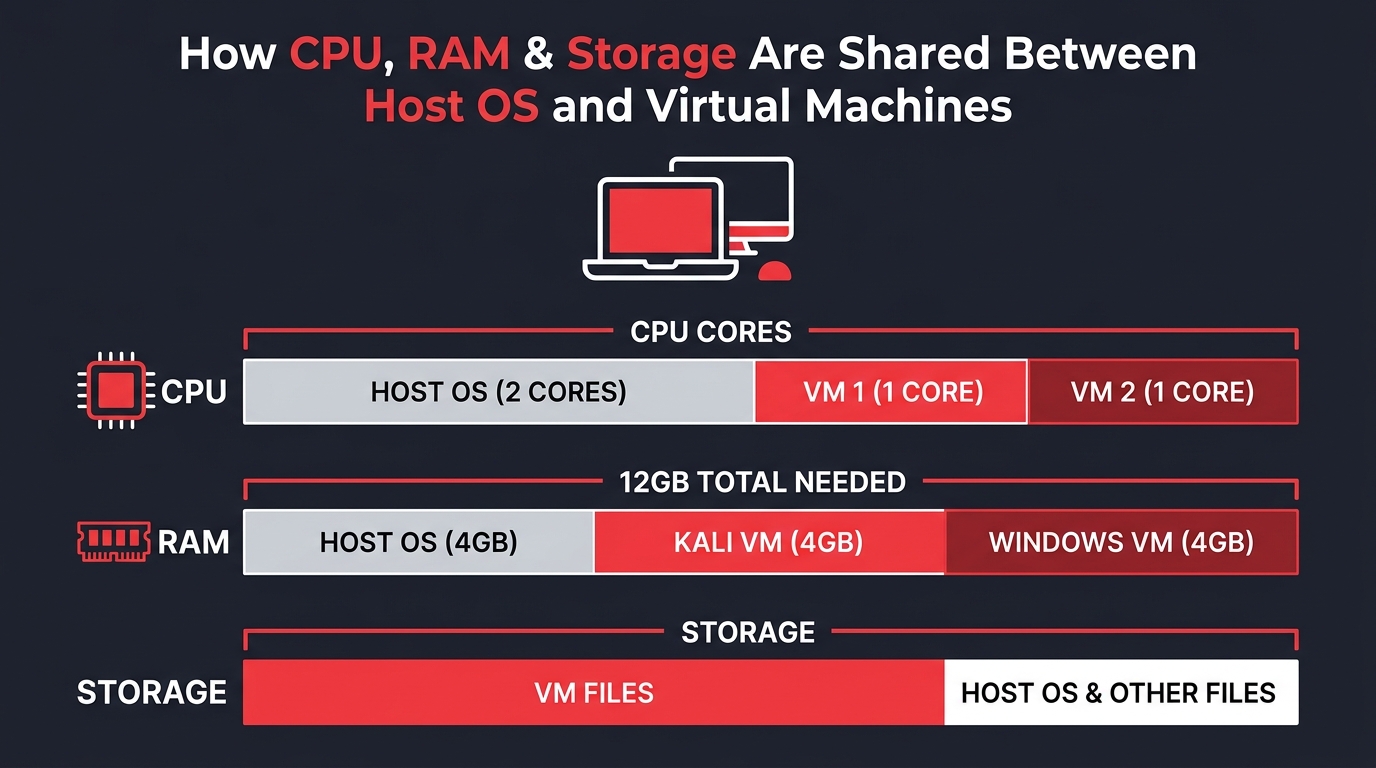
When you are buying a laptop for basic office work or coding, you only need to think about the needs of a single operating system. Virtualization changes this math entirely because the host OS and all your active VMs must share the exact same pool of physical RAM, CPU cores, and storage.
A virtual machine doesn't just need specifications to run itself — it competes with everything else you have open. If you assign 4GB of RAM to a VM, that RAM is immediately walled off and taken away from your main operating system. If your host OS needs that memory back for Google Chrome, it is out of luck until you shut the VM down.
This reality impacts your buying decisions in three major ways:
- Storage Speed: An older mechanical hard drive (HDD) makes VM performance nearly unusable. Because multiple operating systems are trying to read and write system files simultaneously, an HDD will cause your laptop to freeze constantly. A Solid State Drive (SSD) is essentially non-negotiable for VM work.
- CPU Allocation: Your CPU needs hardware virtualization support natively, and it needs enough physical cores so that neither the host nor the VMs starve for processing time.
- Memory (RAM): VMs consume memory linearly. The more you run, the more RAM vanishes. You can read our detailed breakdown on how much RAM your virtual machines will actually consume to understand exactly what capacity you need.
CPU: What Actually Matters for Virtualization
When looking at processors for virtualization, you need to care about three things: hardware support, core count, and clock speed.
Hardware Virtualization Support
Your CPU must physically support virtualization instructions. For Intel processors, this is called Intel VT-x. For AMD processors, it is known as AMD-V. Almost all modern Intel Core i5 and i7 processors, as well as AMD Ryzen processors, support this natively. You generally don't have to worry about a laptop from the last five years missing this feature, but it is always worth verifying on the manufacturer's spec sheet.
How Many Cores Do You Need?
Modern CPUs are divided into "cores," which are individual processing units. When you create a VM, you assign it virtual CPUs (vCPUs). Most virtual machines, like Kali Linux or a basic Windows server, run adequately on 2 vCPUs.
If you buy a laptop with a 4-core processor, you can comfortably run one or two VMs while your host operating system keeps working in the background. If you step up to a 6-core or 8-core CPU, running two or three VMs simultaneously feels significantly smoother. The host OS has plenty of breathing room to run your browser and note-taking apps without lagging.
Don't just count cores though — clock speed (measured in GHz) matters too. A faster clock speed means each core processes instructions faster, making your VMs feel snappier and more responsive during heavy tasks like password cracking or vulnerability scanning.
Storage: The Reality of VM Disk Consumption
One of the biggest mistakes beginners make is underestimating how much hard drive space virtual machines consume over time.
The real-world math:
- A fresh Kali Linux installation takes roughly 20GB to 40GB of space.
- A Windows VM (used as a practice target) needs about 40GB to 60GB just to exist.
- Snapshots: This is the real killer. A snapshot is a "save point" for your VM — you take one before executing malware or making a risky change, so you can instantly revert if things break. Each snapshot can be 10GB to 30GB in size.
If you have a 256GB SSD, Windows itself uses about 60GB. After installing a few heavy applications, you might have only 100GB left. That is barely enough for two VMs with zero room for snapshots. On a 512GB SSD, two VMs with a couple of snapshots can easily consume 150–200GB — manageable, but you need to keep an eye on storage. A 1TB SSD is significantly more comfortable for active lab work.
Thermal Performance: The Part Most Guides Ignore
Standard laptop reviews judge a CPU by how fast it can complete a 30-second benchmark. But cybersecurity virtualization is a marathon, not a sprint.
If you are running a vulnerable web application on a VM, bombarding it with automated directory brute-forcing from your Kali VM, and taking notes on your host OS, your CPU is going to work hard continuously. This generates a massive amount of heat. Consumer laptops — particularly ultra-thin ones — often suffer from thermal throttling.
Thermal throttling happens when the laptop gets too hot to safely operate at peak performance, so the system artificially slows the CPU down to cool off. A laptop that benchmarks incredibly well for the first minute might slow down significantly during 30 minutes of sustained VM use. When this happens, your virtual machines will start to stutter and your host OS will feel sluggish.
Thin and light laptops with tiny fans are far more likely to throttle than slightly thicker laptops with robust cooling systems. Before you buy, look for thermal reviews to see how the laptop handles sustained workloads. If the cooling is poor, those extra CPU cores will not do you much good.
Power Draw and the Nigerian Reality
Running virtual machines continuously demands a lot of power. Because your CPU and RAM are working overtime, your laptop battery will drain significantly faster than during normal web browsing. In Nigeria, where power supply can be unpredictable, this is a crucial factor many buyers overlook.
If you are running an intermediate lab on battery power, you might only get 90 minutes of uptime before the laptop dies. Furthermore, many laptops artificially throttle CPU performance when unplugged to save battery. To get the smooth VM performance you paid for, you generally need to be plugged into wall power, a strong inverter, or a reliable power station. Keep this in mind if you plan to do heavy lab work during extended power cuts in Lagos or Abuja.
Checking and Enabling Virtualization Support
Here is a common scenario: A student buys a great laptop, installs VirtualBox, tries to boot Kali Linux, and gets an error saying virtualization is not supported. They panic, thinking they bought the wrong machine.
In 99% of cases, the CPU supports virtualization, but the laptop's BIOS/UEFI has the feature disabled by default for security or battery-saving reasons. You have to manually turn it on.
How to Check on Windows:
- Right-click your taskbar and open Task Manager.
- Click on the Performance tab.
- Select CPU on the left side.
- Look at the bottom right under the graph for the word Virtualization. It will say either "Enabled" or "Disabled."
If it says disabled, restart your laptop, rapidly press your BIOS key (usually F2, F10, or Delete depending on the brand), navigate to the advanced CPU settings, and toggle Intel VT-x or AMD-V to "Enabled."
VMware vs VirtualBox: What to Use
Once you have the hardware, you need the software. There are two main players for Windows and Linux laptops:
- Oracle VirtualBox: Completely free and open-source. Works well, is widely documented in cybersecurity tutorials, and is perfectly good enough for most beginners and intermediate learners. However, it can sometimes feel slightly clunky, and its USB passthrough can be finicky.
- VMware Workstation Player: Now free for personal use. Generally offers better performance, smoother graphics inside the VM, and better stability during heavy workloads.
Both will run flawlessly on any laptop with virtualization support. If you are just starting, VirtualBox is fine. Graduating to VMware Workstation is a good move as your lab gets more complex.
Realistic Setup Scenarios
1. The Beginner Lab
Workload: Running one Kali Linux VM, a web browser with 10 tabs, and basic networking tools like Wireshark or Nmap.
Requirement: A modern Core i5 processor, 8GB of RAM, and a 512GB SSD. Completely doable on entry-level hardware, though 8GB means you cannot comfortably run a second heavy VM simultaneously.
2. The Intermediate Lab
Workload: Running Kali Linux, a Windows 10 target VM (for Active Directory or malware testing), your host browser, and development tools like VS Code.
Requirement: A Core i5 or i7 processor (minimum 4 to 6 cores), 16GB of RAM, and a 512GB SSD. You need 16GB here because Windows 10 requires at least 4GB on its own to not freeze, Kali needs 2–4GB, leaving 8GB for your host OS to function normally.
3. The Advanced Lab
Workload: Multiple VMs acting as a simulated corporate network (pfSense firewall, Windows Server domain controller, Windows 10 clients, and Kali Linux attacker), plus Docker containers and heavy security analysis tools.
Requirement: A Core i7 or Ryzen 7 processor (8+ cores), 32GB of RAM, and a 1TB SSD. At this stage, memory and cooling are your biggest bottlenecks.
Starting Point Recommendations
You can see available cybersecurity-capable laptops in Nigeria in our inventory. Here is a quick breakdown of what to expect from the current Elitech-Hub options:
- Dell Vostro 3530 (₦1,235,000 new): Features an Intel Core i5 13th Gen processor. The 13th Gen architecture handles multitasking exceptionally well and fully supports Intel VT-x.
- HP 250 G9 (₦1,250,000 new): Comes with an Intel Core i5-1235U 12th Gen. The 'U' signifies a lower-power chip designed for battery life. It will run VMs fine but may hit thermal limits faster than thicker performance laptops if pushed hard for hours.
- Lenovo V15 G3 (₦1,300,000 new): Powered by an Intel Core i5 12th Gen chip. Lenovo's typically robust cooling systems and durable keyboards make this good for long lab sessions.
A vital note: These models currently ship with 8GB of RAM and 512GB SSDs. While storage is adequate to start, the 8GB is sufficient for running only one VM comfortably. If you plan to build an intermediate lab with multiple VMs running simultaneously, ensure the laptop has upgradeable RAM slots. Discuss RAM upgradeability with your vendor before purchasing.
Ultimately, buying a laptop for virtualization means buying for the future. You might only need one VM today, but in six months, you will likely need three. Plan your purchase around what laptop specifications matter for cybersecurity learning generally, prioritize a solid CPU and SSD, and ensure your RAM can grow with your skills.